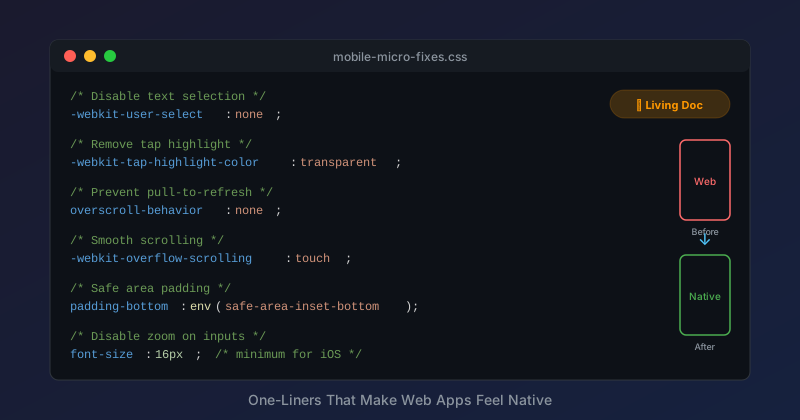
Mobile web apps have a hundred tiny paper cuts that make them feel "off" compared to native apps. None of them are hard to fix—but you have to know they exist. This is a running collection of CSS one-liners and small fixes that make web apps feel native on mobile.
1. Prevent Accidental Text Selection
The problem: Users tap a button or swipe a card, but their finger drags slightly. Instead of the intended action, they've selected text. The time display is now highlighted in blue.
The fix:
h1, h2, h3, .m3-page-header__title, .m3-clock-card__time,
.m3-badge, .m3-bottom-nav__label, button {
  user-select: none;
  -webkit-user-select: none;
}
When to use: UI elements that should never be selected—headers, badges, button labels, navigation text.
When NOT to use: Content that users might legitimately want to copy—addresses, phone numbers, error messages with reference IDs.
2. Kill the Tap Highlight
The problem: On Android Chrome, tapping any element shows a blue/gray highlight rectangle. It looks like a bug, not a feature.
The fix:
* {
  -webkit-tap-highlight-color: transparent;
}
Or more targeted:
button, a, .tappable {
  -webkit-tap-highlight-color: transparent;
}
Note: If you remove the tap highlight, make sure you have another visual feedback mechanism (:active state, ripple effect, scale transform). Users need to know their tap registered.
3. Disable Overscroll Bounce
The problem: Pull down on iOS Safari or some Android browsers and you see a bounce effect that reveals whatever's behind your app (usually white or gray). With a dark theme or colored background, this looks jarring.
The fix:
html, body {
  overscroll-behavior: none;
}
Or to allow vertical scroll but prevent the "bounce past the edge" effect:
html, body {
  overscroll-behavior-y: contain;
}
4. Prevent Pull-to-Refresh Hijacking
The problem: You've built a custom pull-to-refresh component, but the browser's native pull-to-refresh fires first.
The fix:
body {
  overscroll-behavior-y: contain;
}
This contains the overscroll behavior to your element, preventing the browser from taking over.
5. Fix 300ms Tap Delay (Legacy)
The problem: On older mobile browsers, taps had a 300ms delay while the browser waited to see if it was a double-tap.
The fix:
html {
  touch-action: manipulation;
}
Note: Modern browsers have mostly eliminated this delay, but touch-action: manipulation doesn't hurt and ensures consistent behavior.
6. Prevent Zoom on Input Focus
The problem: On iOS, focusing an input with font-size less than 16px triggers an automatic zoom. Users then have to manually zoom back out.
The fix:
input, select, textarea {
  font-size: 16px;
}
Or if you need smaller text, use a transform:
input {
  font-size: 16px;
  transform: scale(0.875);
  transform-origin: left center;
}
Best practice: Just use 16px. Fighting iOS here isn't worth it.
7. Safe Area Padding
The problem: On devices with notches or rounded corners, content gets cut off or obscured by the hardware.
The fix:
.container {
  padding-left: env(safe-area-inset-left, 0);
  padding-right: env(safe-area-inset-right, 0);
  padding-bottom: env(safe-area-inset-bottom, 0);
}
For fixed bottom elements:
.bottom-nav {
  padding-bottom: calc(16px + env(safe-area-inset-bottom, 0));
}
Note: The second parameter is a fallback for browsers that don't support env().
8. Smooth Scrolling (With Caution)
The problem: Scrolling feels abrupt when navigating to anchors.
The fix:
html {
  scroll-behavior: smooth;
}
Caution: Some users have vestibular disorders and motion sensitivity. Respect their preferences:
@media (prefers-reduced-motion: no-preference) {
  html {
    scroll-behavior: smooth;
  }
}
9. Momentum Scrolling on iOS
The problem: Custom scrollable containers on iOS don't have the native "momentum" feel—they stop abruptly when you lift your finger.
The fix:
.scrollable-container {
  -webkit-overflow-scrolling: touch;
  overflow-y: auto;
}
Note: This is largely unnecessary in modern iOS, but doesn't hurt to include for older devices.
10. Hide Scrollbars (But Keep Functionality)
The problem: Scrollbars look ugly on mobile, but you still need scrolling to work.
The fix:
.scrollable {
  overflow-y: auto;
  scrollbar-width: none; /* Firefox */
  -ms-overflow-style: none; /* IE/Edge */
}

.scrollable::-webkit-scrollbar {
  display: none; /* Chrome/Safari */
}
Use sparingly: Scrollbars provide important affordance. Only hide them when the scrollable area is obvious (like a horizontal card carousel).
11. Prevent Body Scroll When Modal Is Open
The problem: Opening a modal, the user can still scroll the body behind it.
The fix (CSS only, limited):
body.modal-open {
  overflow: hidden;
  position: fixed;
  width: 100%;
}
Better fix (with JS): Store scroll position before opening, restore after closing:
// Open modal
const scrollY = window.scrollY;
document.body.style.position = 'fixed';
document.body.style.top = `-${scrollY}px`;

// Close modal
document.body.style.position = '';
document.body.style.top = '';
window.scrollTo(0, scrollY);
12. Touch-Friendly Focus States
The problem: Focus outlines look weird on touch devices where keyboard navigation isn't happening.
The fix:
/* Only show focus outline for keyboard navigation */
:focus:not(:focus-visible) {
  outline: none;
}

:focus-visible {
  outline: 3px solid var(--primary-color);
  outline-offset: 2px;
}
This shows focus outlines for keyboard users but hides them for touch/mouse users.
13. Prevent Text Size Adjustment
The problem: Mobile browsers sometimes "helpfully" adjust text sizes, breaking your carefully designed layout.
The fix:
html {
  -webkit-text-size-adjust: 100%;
  text-size-adjust: 100%;
}
14. Hardware-Accelerated Animations
The problem: Animations are janky on mobile.
The fix: Use transforms instead of position/margin changes:
/* Bad - causes layout recalculation */
.animate {
  left: 100px;
}

/* Good - GPU accelerated */
.animate {
  transform: translateX(100px);
}
For elements that will animate, hint to the browser:
.will-animate {
  will-change: transform;
}
Caution: Don't overuse will-change. It consumes memory. Only apply to elements that will actually animate.
15. Prevent Image Dragging
The problem: Users can accidentally drag images, which looks buggy.
The fix:
img {
  -webkit-user-drag: none;
  user-drag: none;
}
The Meta Viewport (Bonus)
Not CSS, but critical. Make sure your HTML has:
<meta name="viewport" content="width=device-width, initial-scale=1, viewport-fit=cover">
The viewport-fit=cover is necessary for env(safe-area-inset-*) to work.
Starter Snippet
Here's a copy-paste starter for any mobile web project:
/* Mobile CSS Micro-Fixes */
html {
  -webkit-text-size-adjust: 100%;
  text-size-adjust: 100%;
  touch-action: manipulation;
}

html, body {
  overscroll-behavior: none;
}

* {
  -webkit-tap-highlight-color: transparent;
}

button, [role="button"] {
  user-select: none;
  -webkit-user-select: none;
}

input, select, textarea {
  font-size: 16px; /* Prevents iOS zoom */
}

img {
  -webkit-user-drag: none;
  user-drag: none;
}

:focus:not(:focus-visible) {
  outline: none;
}
This post will be updated as we discover more micro-fixes. Got one we missed? Let us know.
Related Posts
- The Floating Card Pattern — Device-agnostic mobile design
- M3E for Blue-Collar Apps — Touch target sizing and more